Are you looking for a way to remove category from WooCommerce product page? Your store might have lots of unnecessary product categories. WooCommerce contains various unnecessary product categories in it.
It’s very easy to remove or hide the product categories. We will show you two different processes for removing them from your store.
- Remove the category using code snippets.
- Hide the category using CSS.
So, let’s explore them properly.
Table of Contents
How to Remove Category From Product Page WooCommerce (Step-by-step process)
When it comes to remove category from WooCommerce product page, you have two simple options. You can either edit the product page directly or adjust your WooCommerce settings. Let’s come to know the details.
Use a code snippet to remove category from WooCommerce product page
Thankfully, WooCommerce offers us the “woocommerce_single_product_summary” action hook, which is helpful.
This tool enables us to easily add, alter, or remove information as needed, allowing us to customize what shows on the shop page.
This functionality will help us quickly remove the product categories from the single product page. For reference, look at the code fragment below:

You can add this code to the functions.php file of your WordPress child theme or utilize a code snippets plugin. Whichever approach you go with, make sure the code holds up even if you update your theme or plugins.
Refer to the plugin directory at WooCommerce Code, particularly in the “ProductSummary Box” section, for a complete list of WooCommerce hooks associated with the product summary box.
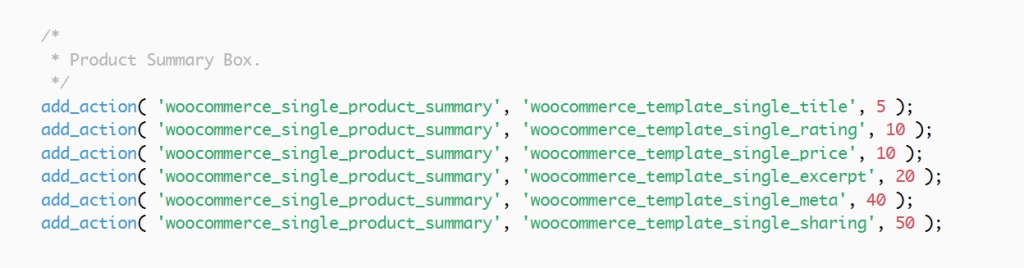
You can customize your single product page’s appearance using the filters offered by your WooCommerce shop template. You have the choice, among other things, to eliminate the product title or ratings.
Using CSS to Hide WooCommerce Product Categories Information
I advise using the PHP approach mentioned before if you prefer custom code. You can achieve the same result using simple CSS code, which offers a faster, less error-prone process.”
Step 1: Navigate to your admin dashboard, select “Appearance,” and then “Customize.”

Step 2: Opt for the “Additional CSS” option.

In the provided box on the left side, insert the custom CSS code. If the code doesn’t take effect, consider adding “!important“.
How to Remove Category from WooCommerce Product Page: FAQs
How do I hide categories in the WooCommerce product detail page?
Step 1: Go to your WooCommerce dashboard.
Step 2: Click on “Settings.”
Step 3: Select “Products.”
Step 4: Look for the section called “Hide from categories.”
How do I remove categories from multiple products in WooCommerce?
Step 1: Log into your WordPress website.
Step 2: Go to your WooCommerce dashboard.
Step 4: Hover your cursor over “Products.”
Step 5: Click on “Categories.”
If you want to delete multiple categories together, Please select the categories you want to remove by checking the box next to each of them.
How do I hide categories by user in WooCommerce?
To hide products in WooCommerce categories based on user roles, follow these simple steps:
Step 1: Within your WordPress dashboard, go to WooCommerce.
Step 2: On the “Settings” page, select “Members Only.”
Step 3: Select the “User Role” restriction mechanism.
Step 4: Select “Specific Categories” under “Restricted Content.”
Step 5: Enter the categories you want to conceal under “Restricted Categories.”
Wrap-up
Categories are really important for online stores. However, WooCommerce offers so many options for displaying product characteristics on a single page that it might be overwhelming.
You might occasionally want to hide a few categories. I looked at WooCommerce to remove categories from the product page in this tutorial. I hope this guidance was helpful to you.
In addition, if you want to boost your WooCommerce website, go with wcEazy! It supercharges your store’s performance and speed with its all-in-one plugin, making it a must-try for increasing the success of your online shop.
Please feel free to express your thoughts and inquiries. I’m here to help and to pick up on your thoughts!