If you work in the WordPress environment and have a website built and customized with Elementor, then this article is for you. We are going to show you exactly how to enable Elementor dark mode on your site, step by step.
As you already know, one of the best things about being in the WordPress environment is that you can build a website without any coding or web development knowledge. With WordPress derivatives, themes, and plugins, you can make this happen with ease.
Page builders like Elementor make your WordPress customization effort far easier. Within a few moments, you can change the overall look of your site. It’s the kind of tool that makes your website-building experience robust and smooth, saving you time and trouble by keeping everything codeless. There’s no need for a CSS filter darken method or HTML code to darken page elements.
If you want to add dark mode to your Elementor-built WordPress site, you will get the complete dark mode solution by following some really easy steps to make it happen.
Does WordPress Have a Dark Mode of Its Own?
WordPress doesn’t have a built-in default dark mode option. However, there are some dark themes available for customizing your site. You either have to use a plugin to enable dark mode on your WordPress site or use a dark theme instead.
In this article, you will learn about the best dark mode and accessibility plugin, Darklup, to help you get the dark mode you want on your live site.
Why Choose Darklup for your WordPress Site?
With its growing popularity and usage, dark mode has topped the list of best and most advanced features to facilitate users. And if you have a WordPress site, it becomes even easier to put that feature to work.
Coming back to the plugin in question, Darklup is one of the best dark mode plugins available. It not only gives you a dark-themed look across your entire site but also opens the door to more interesting features.
In 2026, Darklup has evolved into a broader accessibility-focused tool, so dark mode now sits alongside separate accessibility modules that deliver a fully immersive experience and enhance the plugin’s acceptability to the audience. Also helps make your site easier on the eyes for everyone.
Along with frontend dark mode, you can also enable dark mode for the backend (your WordPress dashboard). This gives you maximum comfort while you work behind the scenes. On the front end, a stylish collection of toggle switches is available for your visitors.
You can also fully customize the background color for dark mode. Darklup gives you a collection of color presets to choose from, plus fine control over background color, link color, text color, and more across both the front and back end. And that’s just the start. Looking at some of the standout features of Darklup, you will find:
- Dark mode element/widget for displaying a toggle switch on any page (Elementor, Gutenberg, and more)
- Image color overlay and image-swap functionality so logos and images render correctly in dark mode
- OS-aware dark mode that respects each visitor’s device preference
- WooCommerce support that keeps product images, price badges, and CTA buttons looking clean
- Floating switch buttons with full customization (icon, background, plate, and text colors)
- Remember the last-used mode so returning visitors keep their preference
- Custom CSS support for fine-tuned styling
- Accessibility switch and panel for broader usability
- Shortcode integration for placing the switch anywhere
Pricing: The free version, Darklup Lite, is available on WordPress.org. Paid plans are billed either annually or as a lifetime purchase. Dark single-site Starter license starts with $29/year, with Business and Ultimate tiers covering more sites.
Lifetime licenses are also available starting at roughly $49 for the Starter tier with 3-site licenses, while other plans, including Ultimate Business, offer the most affordable options. You can check all the Darklup pricing plans on the official Darklup pricing page for the current rates before you buy.
This tool will give you a polished dark design, making your site look more stylish and attractive in dark mode. Most importantly, it comes with major page builder support, including Elementor.
With the Elementor widget from Darklup, you can place your dark mode toggle switch on any page, anywhere you want. So let’s look at the simple steps to enable Elementor dark mode on your WordPress website.
🎯Learn More: Darklup vs WP Dark Mode: Best WordPress Dark Mode & Accessibility Plugin Compared
Guide: How to Enable Elementor Dark Mode in 2026?
With the help of the Elementor widget feature, you can easily place the Darklup switch button anywhere and enable Elementor dark mode on your site. Don’t worry, it isn’t a tough task. Follow the steps carefully, and by the end of this article, you will be able to enjoy Elementor dark mode. So let’s dive in.
Step 1: Install and Activate Darklup Plugin
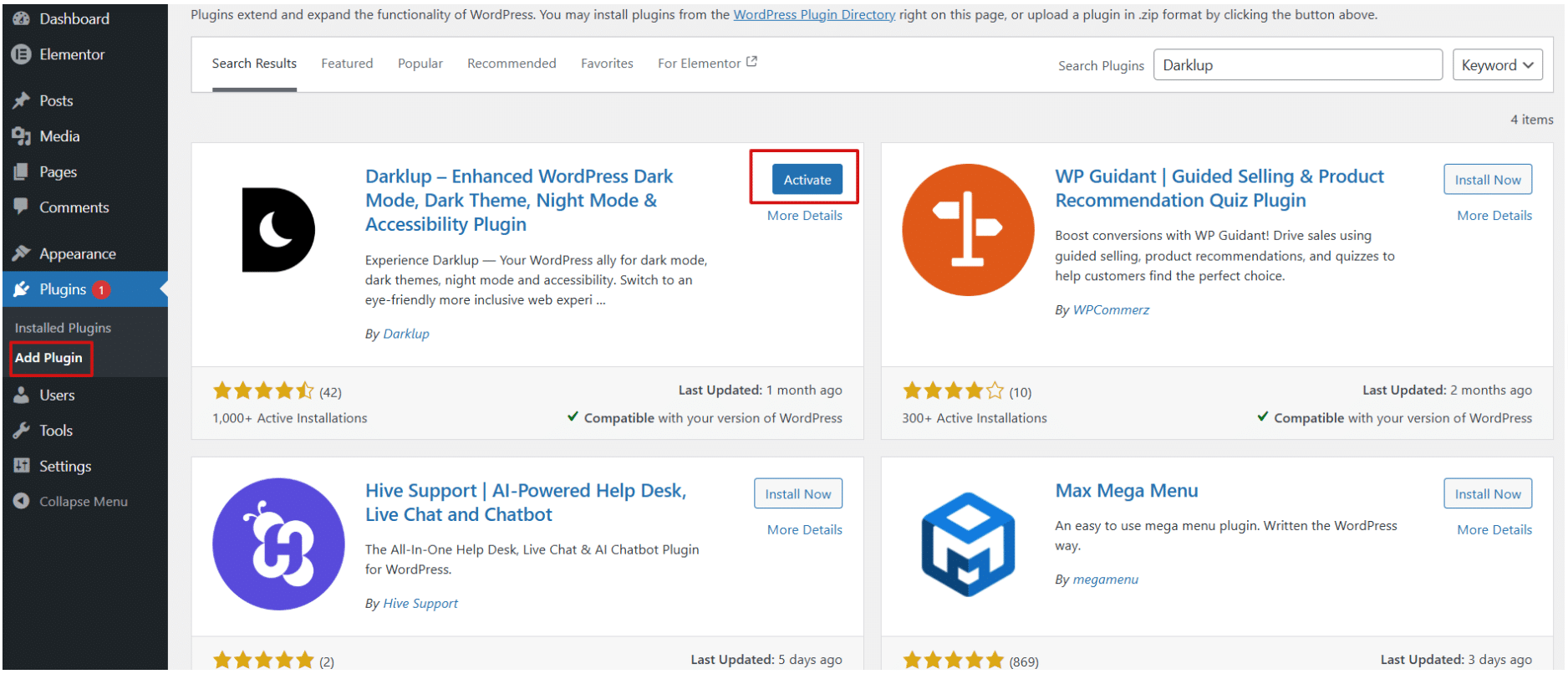
First, install the free Darklup plugin from the WordPress repository. Navigate to the Plugins option on your admin sidebar and click Add New. Then search for “Darklup,” install it, and activate the plugin.
Step 2: Build a Page and Edit With Elementor
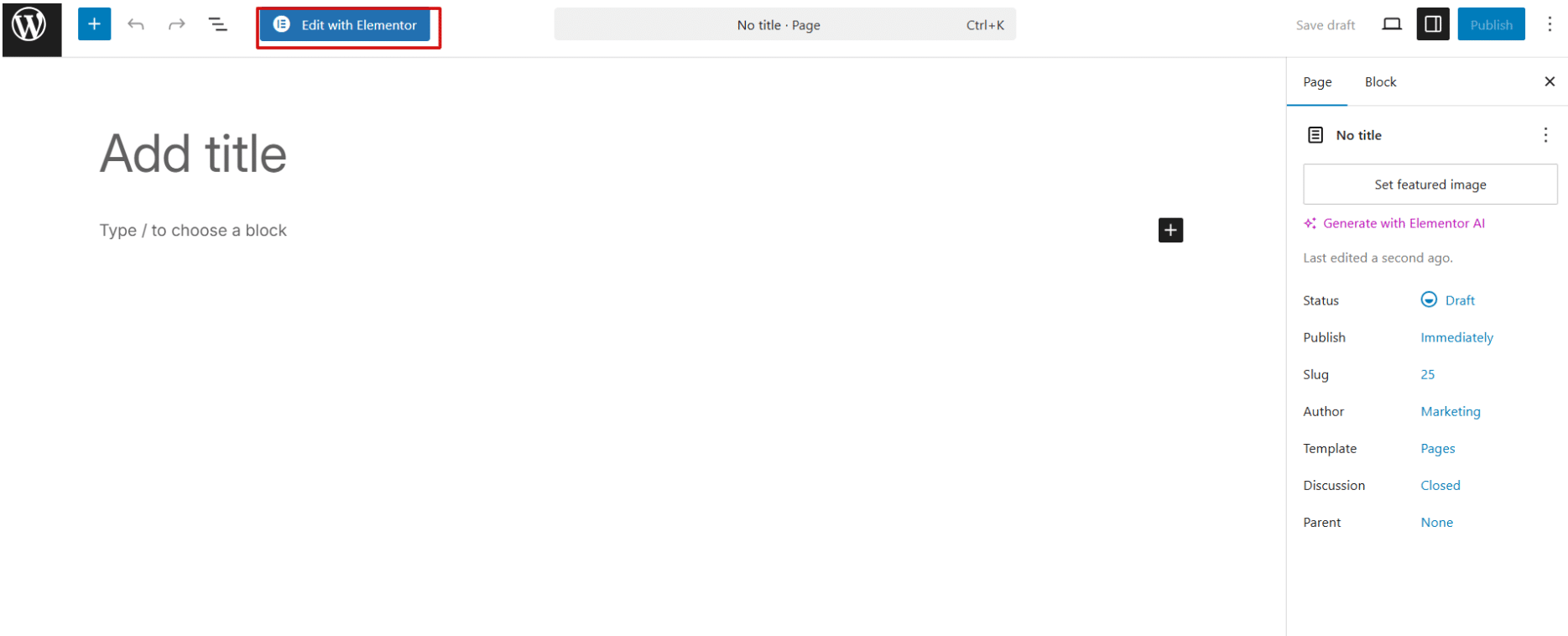
Now build a page using Elementor. Go to your WordPress Dashboard > Pages > Add New.
After creating a new page, click the Edit with Elementor button.
Step 3: Drag and Drop “Darkmode Switch” Widget
In the Elementor editing panel, search for “Darkmode Switch”.
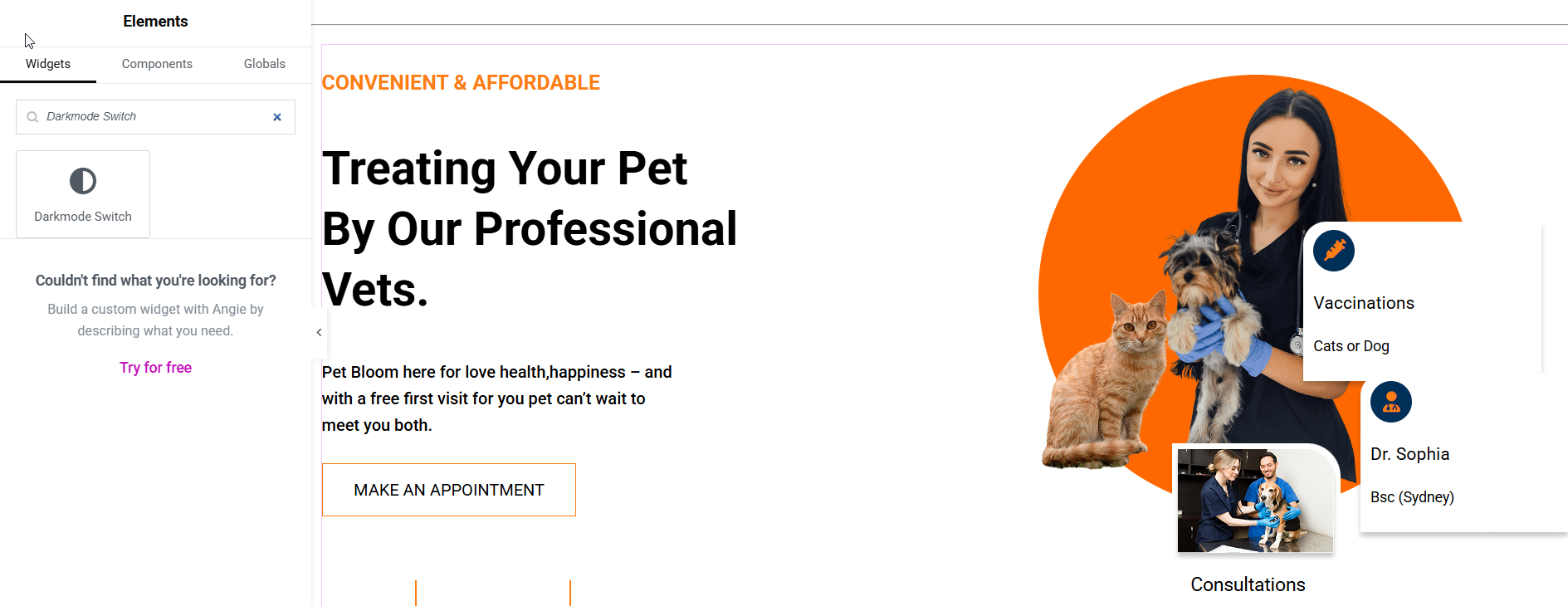
Afterward, you will get Darklup “Dark Mode Switch Settings” and drag and drop the dark mode button into the editing area of your page.
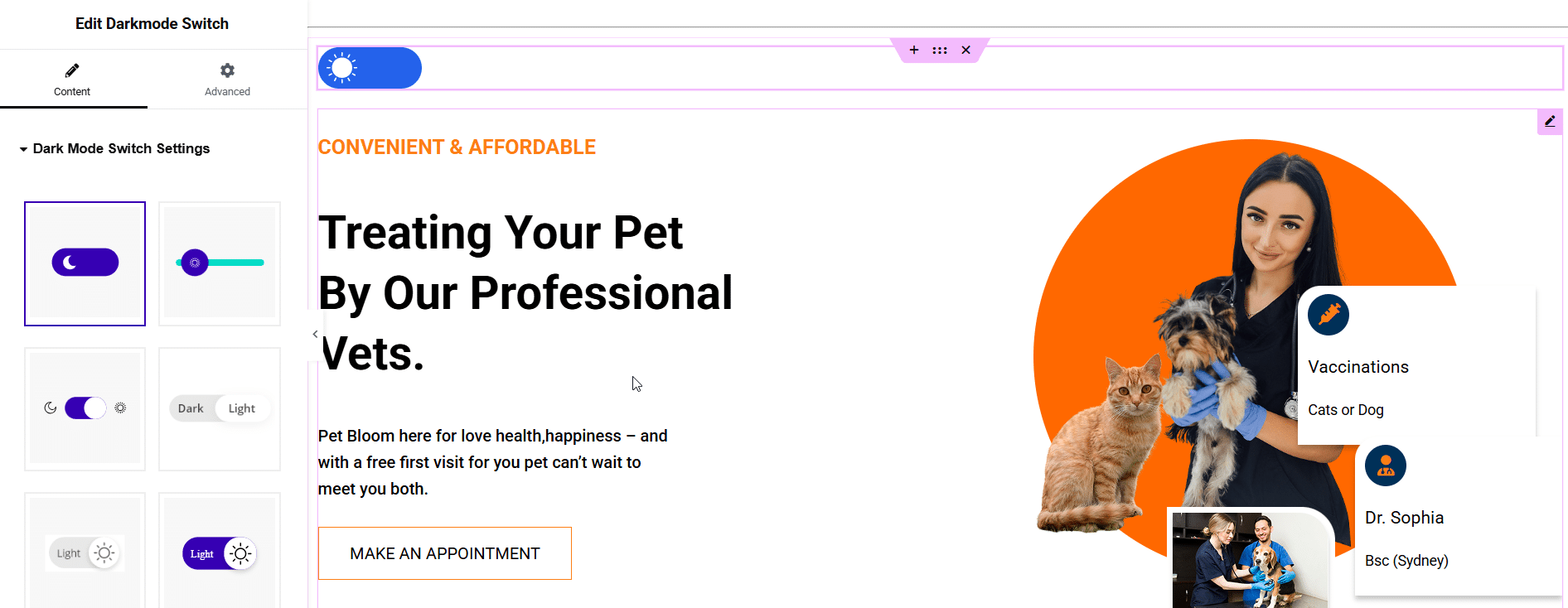
Step 4: Choose a Switch Style and Adjust the Button
Darklup offers a collection of switch styles, which you will see in the left panel. Choose any style you like for the dark mode button, and it will be set. You can also adjust the button’s size, position, and colors to match your design.

Step 5: Update and Publish Your Page
Finally, save your changes by clicking the green Update button at the bottom, then click Publish. That’s it. Now go to your live page and enjoy dark mode.
If you are using a specific Elementor toggle or a custom Elementor link color, Darklup will make these elements stand out in dark mode, keeping your site visually pleasing and easy on the eyes.

Turn On Dark Mode for Your Entire Website
Beyond a single page, Darklup helps you enable site-wide dark mode and customize it in convenient ways. Now that you have installed the plugin, let’s explore its settings more effectively.
First, go to your WordPress Dashboard and navigate to Darklup Settings > Advanced Settings option.
In the plugin’s settings, you can access various options such as:
- Enable Frontend Dark Mode: Adds a dark mode option to the tour website’s frontend
- Enable Dashboard Dark Mode: Adds a dark interface to your website’s backend
- Dark Mode as Default: Enables dark mode by default for all visitors.
- Enable OS Aware Dark Mode: Automatically turns on dark mode based on the visitor’s operating system settings.
If you want to enable the frontend option to switch dark mode on your live site, click the Save Settings button.
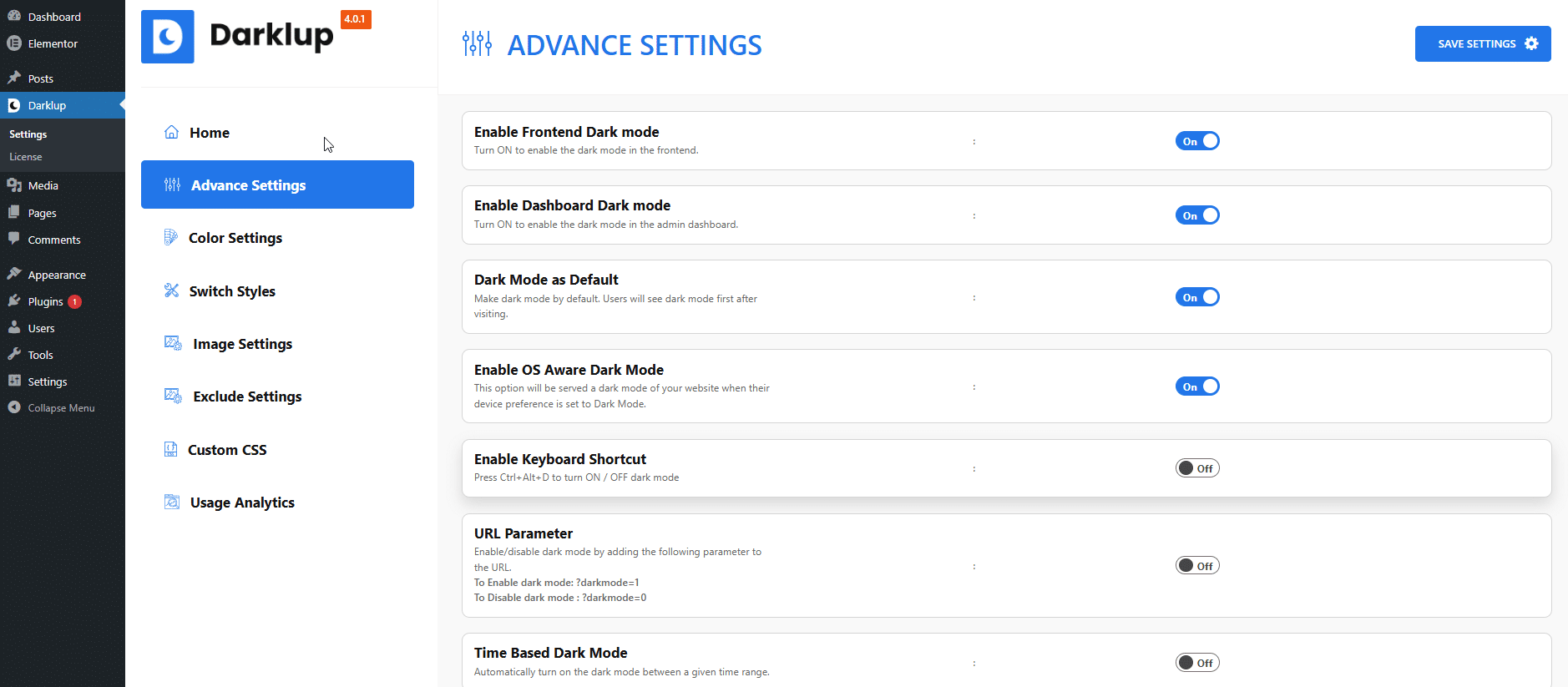
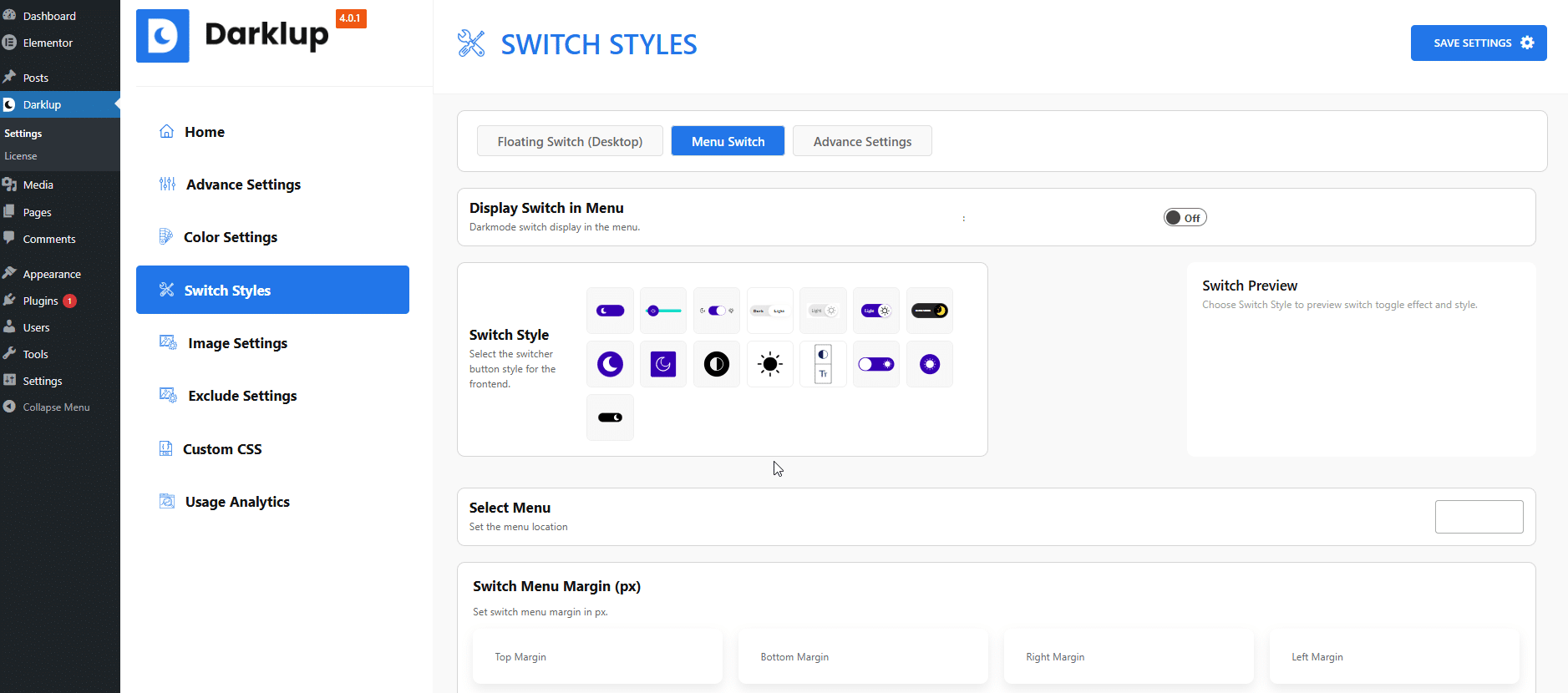
Once saved, dark mode is live on your website. Visitors can now turn dark mode on or off by clicking the dark mode switch. You can also customize the look of that switch from the Switch Styles menu, where multiple switch styles are available. Just pick the one that fits your design.
Now Enable Elementor Dark Mode in 2026!
Darklup is always ready to give you flexible dark mode customization. If you have an Elementor-powered website, you can easily turn on dark mode with this plugin. Just install and activate it, then follow the step-by-step process we showed above to customize Elementor’s dark mode fully.
Not only can you use the Darklup Accessibility modules to make your site accessible, but you can also always stay ahead of trends. So what are you waiting for? Start with Darklup today!
Also, if you want to read more strategic content like this, you can subscribe to our blog page. For a step-by-step guide, you can also get instant support from our documentation page.